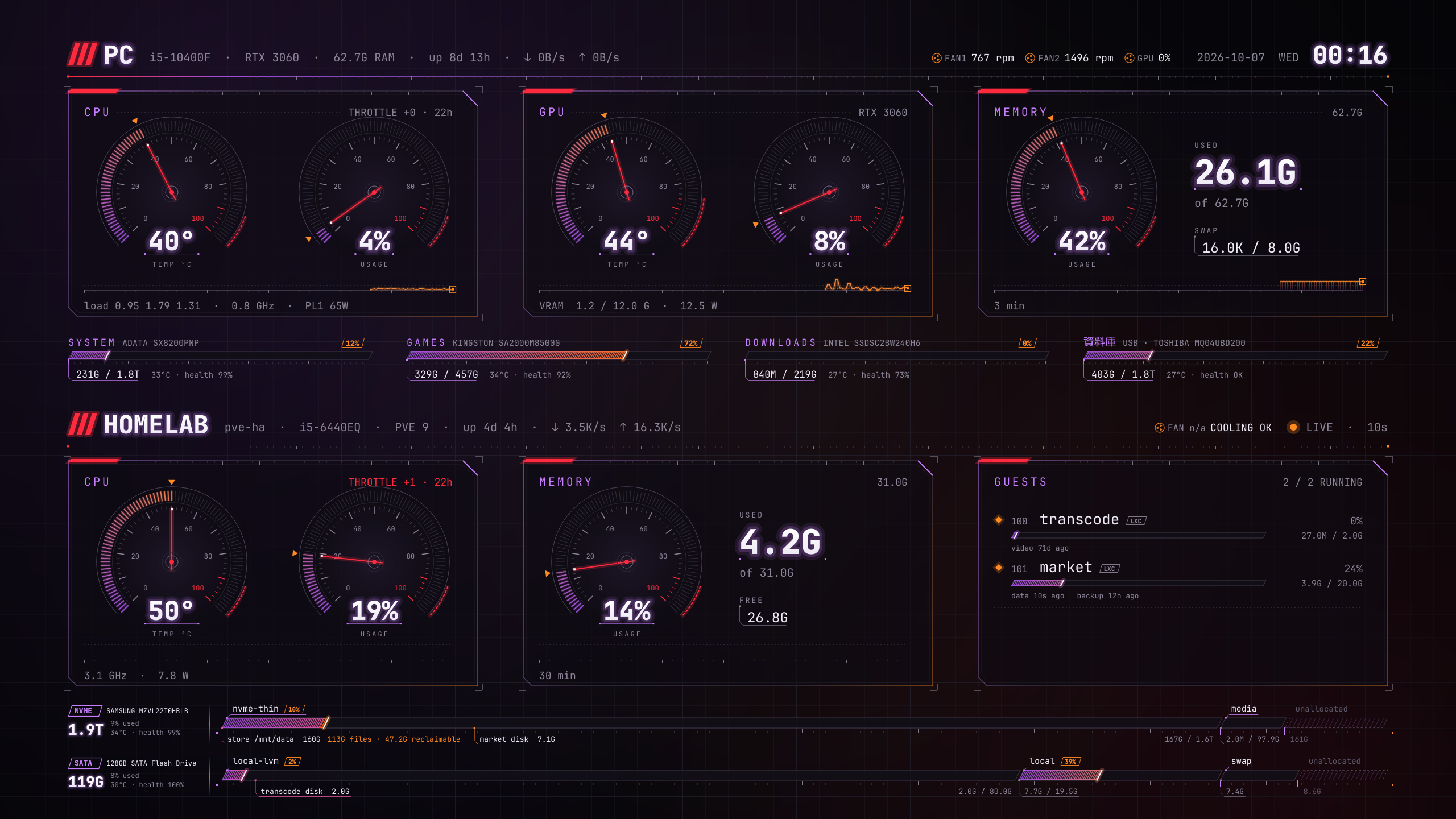
System Dashboard
Bring up the full-screen dashboard with a single click to see your temperatures, fan speeds, and drive status at a glance.
It all started because I wanted to keep an eye on my desktop and my little Proxmox home server—specifically how hot they were running, how much disk space was left, and whether the fans were actually spinning. I began by cobbling something together with Conky on my desktop, but as I kept adding more bits, I eventually decided to just draw the whole thing myself.
My System Dashboard usually hides away in the system tray. A quick left-click (or hitting Ctrl+Alt+Z) brings it up as an overlay, much like a screensaver; another click and it’s gone. It only uses about 3% of a single core when it’s open, and it’s practically invisible when it’s tucked away.
- Analogue-style gauges: CPU/GPU temperatures and usage, memory, network speeds, fan speeds, plus the capacity, temperature, and health of every hard drive.
- Overheat warnings: If the temperature hits the red zone, or if it’s running hot while idle (which usually means a fan’s died), the whole dial turns red and starts flashing.
- Photo frame: It’ll cycle through photos on a second monitor—you can use your own or have it automatically download high-res landscapes. If you’ve only got one screen, it’ll just alternate between the dashboard and the photos.
- Home server (optional): It can cycle through the CPU, memory, VM/container, and storage pool stats for several Proxmox machines.
- It works while you’re gaming in full-screen, and you can set it to stop your screen from going to sleep while it’s open.
- The interface switches automatically between English and Chinese.
The installer handles all the necessary bits and bobs. The Windows version includes temperature sensors—just keep clicking 'next'. The Linux version sets up the system services for disk health and CPU power consumption, and it’ll even add the keyboard shortcut to GNOME for you. You don’t need to install Python or anything else on either platform. The program only reads your hardware status locally and doesn't send any data out; it only connects to the internet when you tell it to (like for downloading photos or checking your server).
⚠️ When you run the Windows installer for the first time, you’ll likely see a "Windows protected your PC" pop-up. Just click "More info" and then "Run anyway". Since this is a personal project, I haven't bought a digital signature, and Windows tends to get a bit twitchy about unsigned software. You won't have this issue on Linux.
⚙️ It’s currently in beta and supports Windows 10/11 (64-bit) and Ubuntu/Debian (via .deb package; tested on Ubuntu 22.04 and 24.04). Installation instructions are on the GitHub download page. It’s free to use, so feel free to have a play and let me know what you think.
Loading…